If wish to restrict which monitors can unlock the door station. Follow these Steps.
- Update Door station, using the below Firmware.
Restricted Room FirmwareUpdate Intercom Firmware
Upgrading Intercom Firmware
To upgrade firmware on a Indoor Monitor or Outdoor Station, follow the steps below. Before beginning, ensure you have the latest firmware for your product downloaded to your computer and that your computer is in the same IP address range as the intercom device.
- Download and open Config Tool.
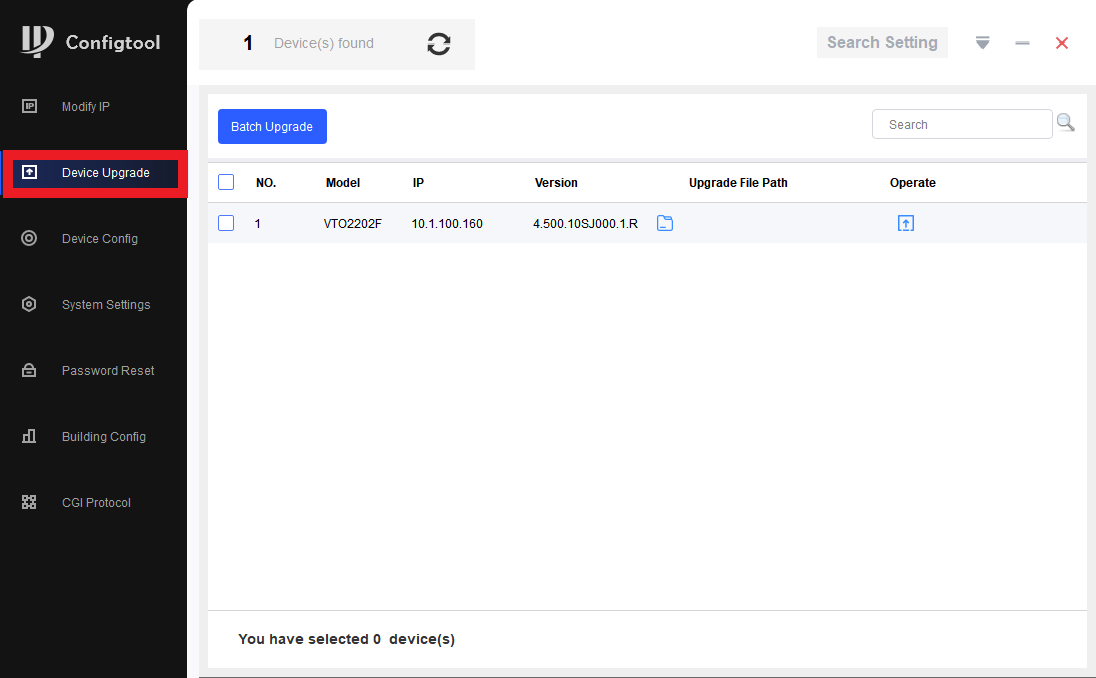
- Select the Upgrade menu.
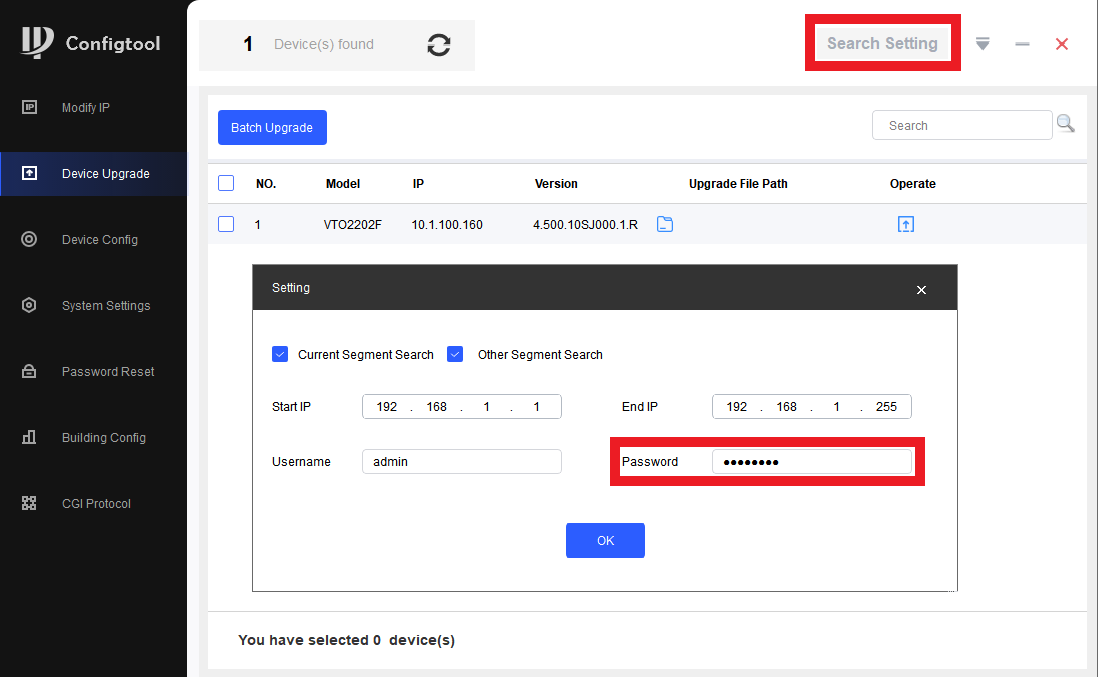
- Select Search Settings and enter the password for the device you would like to upgrade. Select OK.
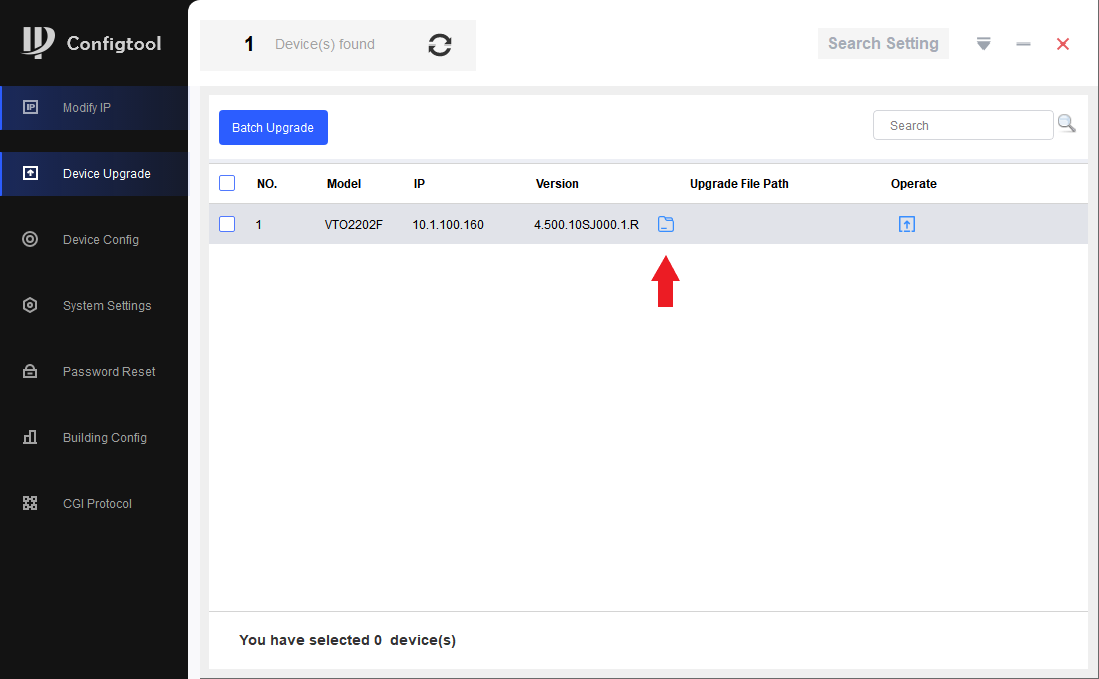
- Select the Browse button next to the device you would like to upgrade, and select the firmware file.
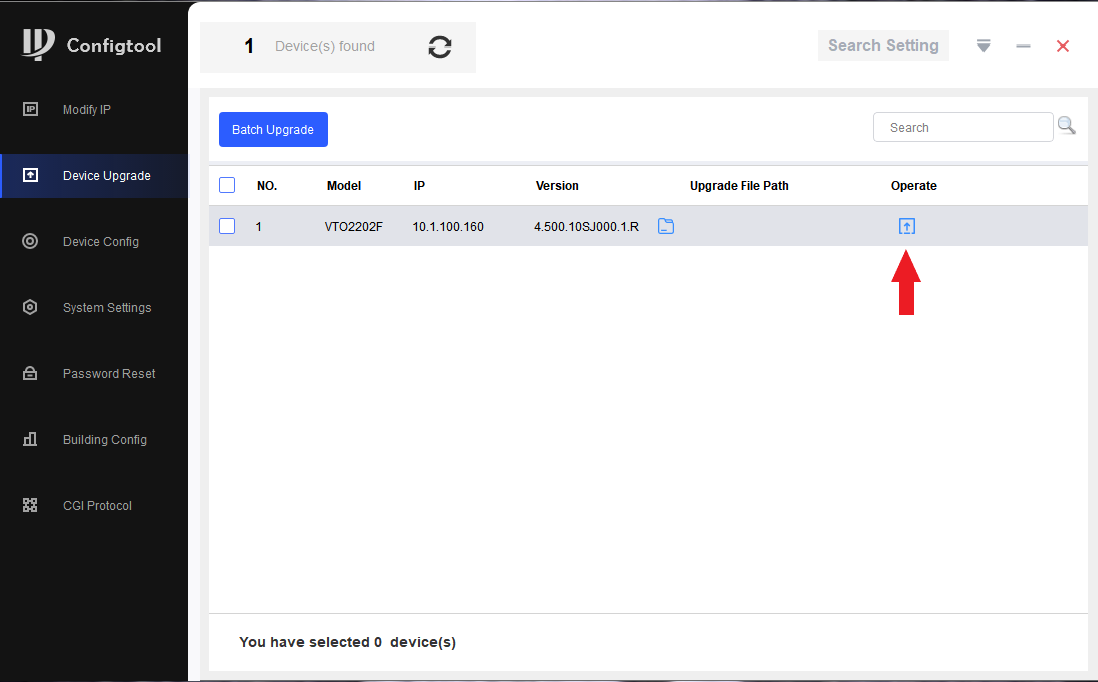
- Select the Upgrade button.
- Select Main Program, then select OK.
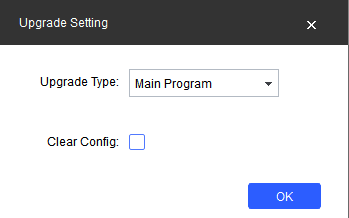
- The upgrade process will now begin. After it is completed, it is recommend to default the device.
- Login into door station. navigate Local Device Config > Access Control > Config


- Navigate down to Restricted Rooms and Toggle on, Select which rooms from the list you want to restrict.

- The Monitor will give a unlock error when attempting to unlock
